
The Awards Platform is an all-in-one awards management system, everything you need to launch, run and grow an awards program, in one place. If you’ve run an awards program before, you already know the judging isn’t the hard part. It’s the admin around it, with entries arriving by email, a spreadsheet nobody trusts, judges who need chasing, and scores that have to be added up by hand at the end. This platform replaces all of it.
What it handles
Setting up
Build your categories, decide how each one is won, set your judging criteria and scoring model, and lock in your dates.
Collecting entries
Design your own entry form, review what comes in, approve what fits, and move entries between categories when someone enters the wrong one.
Judging
Invite your panel, assign them categories, handle conflicts of interest properly, and score question by question. Add public voting if you want it.
Results
Watch progress as judging happens, see your winners the moment scoring closes, and export the reports you need.
There’s also a landing page builder, so your awards get a proper public home without anyone writing code. Colours, typography, layouts, cards, sections and navigation are all yours to change, which means the page looks like your organisation rather than like software. Corporate awards, industry awards, community recognition, startup competitions, media awards, small niche events, the platform doesn’t mind what you’re celebrating. It handles the operational side, so you can spend your time on the part that matters most. Finding the people worth recognising.
One credit runs one complete awards program, from the first setting you configure to the final report you download. Nothing extra to buy along the way, no per-entry fees, no charges for extra categories or judges. Credits can be bought singly or in packs if you run several programs a year, and are valid for 12 months from purchase. See pricing.
What’s in this guide
Every stage of planning, launching and running an awards program. Jump to whichever part you need.
| Section | What it covers |
|---|---|
| 1. Overview | What you see when you log in, and the nine steps from empty program to published results |
| 2. Setting up your program | Program details, timeline and dates, alerts and the 25 emails the platform sends on your behalf |
| 3. Award categories | Creating categories, and choosing how each is won: judges, public vote, or a weighted mix |
| 4. Entry form builder | Building your form, field types, who sees what, and scoring individual questions |
| 5. Landing page builder | Designing your public awards site, branding, sponsors, FAQs, results. No code required. |
| 6. Judge management | Inviting judges, assigning categories, and handling conflicts of interest properly |
| 7. The judging panel | What judging looks like from your judges’ side of the screen |
| 8. Entry management | Reviewing submissions, approving entries, and moving them between categories |
| 9. Reports and analytics | Judging progress, scoring breakdowns, downloadable reports and your full audit trail |
| 10. Entrant feedback | Sending personalised results to entrants automatically once judging is complete |
| 11. Frequently asked questions | Costs, timescales, judging panels, public voting and data |
Your campaign overview dashboard
When you log in, everything lands on one screen. It’s built to answer the three questions every organiser asks: what do I need to do next, when is everything happening, and how is it all going?
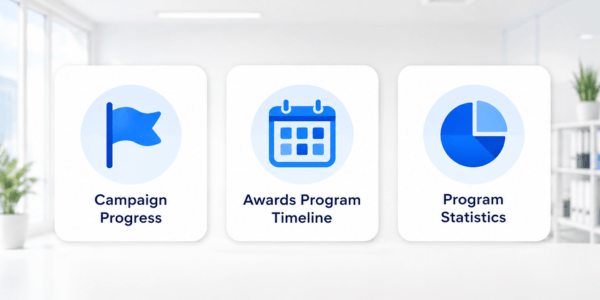
Campaign progress
A nine-step checklist that walks you from an empty program to published results.
Timeline
Your key dates laid out visually, so everyone knows which phase you’re in.
Statistics
Live numbers on entries, judges and votes as they come in.
Campaign progress: your nine steps
Running an awards program for the first time, the hardest part isn’t any single task, it’s knowing what order to do them in. The checklist solves that. It’s sequenced the way the work actually has to happen: you can’t build an entry form until you know your categories, and you can’t assign judges until you’ve invited them. Tick them off in order and you’ll never be left wondering what you’ve forgotten.
All nine steps are covered by one credit. A single credit runs one complete awards program, from first setup to final results, there’s nothing extra to buy along the way.
| Step | What you’re doing | What it involves |
|---|---|---|
| 1 | Set up your program | Name it, set your dates, and choose who gets notified |
| 2 | Create your categories | Name each award and decide how it’s won: judges, public vote, or both |
| 3 | Build your entry form | Choose what you’re asking entrants to tell you |
| 4 | Invite your judges | Send invitations and build your panel |
| 5 | Assign judges to categories | Decide who scores what |
| 6 | Open for entries | Your program goes live and submissions start arriving |
| 7 | Approve entries | Review what’s come in and let the suitable entries through |
| 8 | Start judging | Your panel scores the approved entries |
| 9 | View your results | Final scores and reports, ready for your announcement |
Your timeline
A visual map of your key dates, so organisers, judges and entrants all know where things stand:
- When entries open and close
- When public voting runs
- When judging takes place
- When winners are announced
Your statistics
Live figures that update as your program runs, so you can see momentum building:
- Entries submitted
- Judges assigned
- Categories running
- Public votes received
- Current program status
That’s the whole picture. Now let’s start at step one, setting up your program.
Setting up your program
This is step one on your checklist, and it’s worth taking slowly. What you enter here spreads out across everything that follows, your program name appears on your public landing page, and your dates control when entries open, when judges are chased, and when the system stops accepting submissions. Get these right and much of the program runs itself.

Basic information
Your program name and description. Write these properly rather than as placeholders, they’re pulled through automatically onto your landing page, so entrants read them before they read anything else. We cover the landing page builder further down.
Timeline and dates
Four dates shape your whole program, and you set them all in one place. Here’s how a typical autumn program looks:
| Phase | Opens | Closes |
|---|---|---|
| Overall program | 7 September 2026 | 10 December 2026 |
| Entries accepted | 7 September 2026 | 6 November 2026 |
| Judging | 9 November 2026 | 4 December 2026 |
| Winners announced | 10 December 2026 | |
An example three-month timeline. Note the two-day gap between entries closing and judging opening, that’s your window to review and approve.
Alerts and notifications
Choose how you want to hear about activity in your program. As well as email, you can send alerts straight into Discord or Slack, or to a webhook if your team wants to feed them somewhere else. If your organising team already lives in a Slack channel, this keeps everyone in the loop without anyone refreshing a dashboard. That’s your foundations laid. Categories, judges and entries all sit on top of what you’ve just configured.

Email previews
The fourth tab shows you every automated email the platform sends, exactly as your entrants, judges and voters will see it. Worth a read-through before you open for entries, no surprises landing in anyone’s inbox with your name on them.
Emails the platform sends for you
Ask anyone who has run an awards program on spreadsheets what took the most time, and it won’t be the judging. It’s the chasing, confirming entries arrived, reminding judges the deadline is near, telling people what happens next. The platform sends 25 emails across the lifecycle, triggered automatically by what’s happening in your program. You don’t schedule them and you don’t write them.
5 to entrants
Confirming their entry arrived, and what happened to it.
10 to judges
Invitations, reminders & nudges, so you never have to send them.
8 to you
Who’s accepted, who’s stalled, who’s finished, and when a result needs your decision.
2 to voters
Verifying public votes are genuine.
Emails to your entrants
| Sent when | |
|---|---|
| Entry received | Someone submits an entry |
| Entry approved | You approve their entry |
| Entry approved, category changed | You approve an entry but move it to a different category |
| Category reassigned | You move an already-approved entry to another category |
| Post-awards feedback | You send feedback after results, to entrants who didn’t win |
Emails to your judges
| Sent when | |
|---|---|
| Invitation | You invite them to join your panel |
| Welcome + onboarding info | They accept your invitation |
| Another category assigned | You add a category to their workload |
| Replacement assignment | They’re given a specific entry, for example after another judge declares a conflict |
| Judging is open | Your judging period begins, sent only to judges with entries to score |
| New entries to review | More approved entries arrive after judging has opened |
| Deadline reminder | Seven days before judging closes, if they still have entries to score |
| Final reminder | 48 hours before judging closes, if they still have entries to score |
Notifications to you
| Notification | Sent when |
|---|---|
| New entry received | Someone submits an entry |
| Entries approved | One or more entries are approved |
| Entry moved to another category | An entry is approved and moved into a different category |
| Judge accepted | A judge accepts your invitation |
| Judge declined | A judge turns your invitation down |
| Conflict of interest declared | A judge flags a connection to an entry they’ve been given |
| Judging progress update | Seven days before judging closes, with one summary of every judge who still has scoring to finish |
| Final judging progress update | 48 hours before judging closes, with the same summary |
| Tie detected | Two or more entries are level at a winning position |
| Deadline approaching | A deadline you’ve set for your program is coming up |
Emails to public voters
| Sent when | |
|---|---|
| Verify your vote | A visitor votes for an entry |
| Verify your votes | A visitor votes for several entries at once |
Every one of these fires on its own. Your job is to set the dates, the platform handles the rest.
Award categories
Now you decide what you’re actually giving awards for, and how each one is won. Every category needs three things: a name, a description, and optionally an icon. Write the description for entrants rather than for yourself; it’s what tells someone whether they should enter this category and what judges will be looking for.
Icons are decorative, and appear on your public landing page, upload them at 300 × 300 pixels for the sharpest result. Running a lot of categories?
Bulk import lets you paste them in as CSV data rather than creating them one at a time.
How will this category be won?
Every category is configured independently, so you can mix all three models in the same program.
Judges decide
Your panel reviews and scores every entry. The most common choice, and the right default for awards that need to be credible.
The public decides
Verified public votes pick the winner outright. Ideal for people’s choice and community awards.
Both decide
Judges and the public each carry a share of the result, in whatever proportion you choose.
Judge-only categories
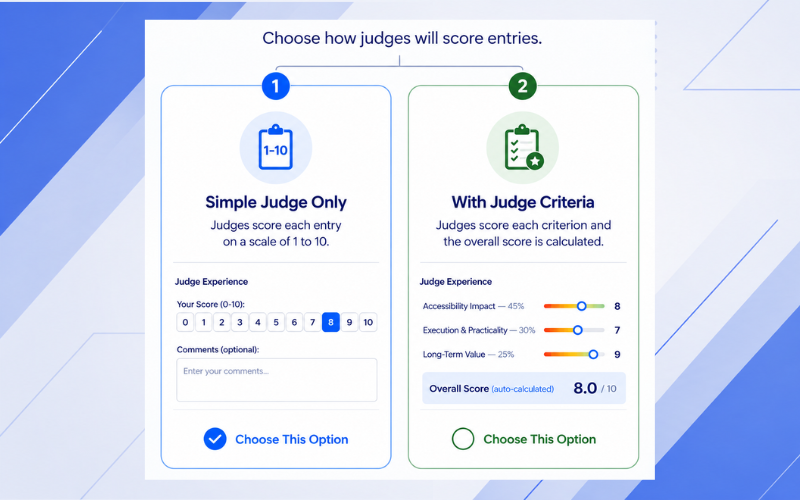
Your panel reviews each entry independently and scores it. You choose how they score: a single overall mark, or criterion by criterion.
| Method | What judges do | Set up in |
|---|---|---|
| Simple score (1–10) | Give one overall score to the whole entry | Category settings |
| Weighted criteria | Score each criterion separately, with the criteria you consider most important counting for more | Category settings |
| Per-question scoring | Score individual questions on the entry form rather than the entry overall | Entry form builder |
Simple score: how it adds up
Each judge gives one mark out of ten. The platform averages them.
Judge A          8 / 10
Judge B          7 / 10
Judge C          9 / 10
                 ────────
Final score      8.0 / 10     (8 + 7 + 9) ÷ 3
Weighted criteria: how it adds up
You define the criteria and decide what each is worth. A judge scores every criterion, and the platform weights them before combining.
Innovation      40%      8 / 10   →   3.20
Impact          35%      7 / 10   →   2.45
Execution       25%      9 / 10   →   2.25
                                      ────────
Judge's score for this entry          7.90 / 10
This is the model to choose when “best” means several different things at once, and you don’t want them counting equally.
Per-question scoring: how it adds up
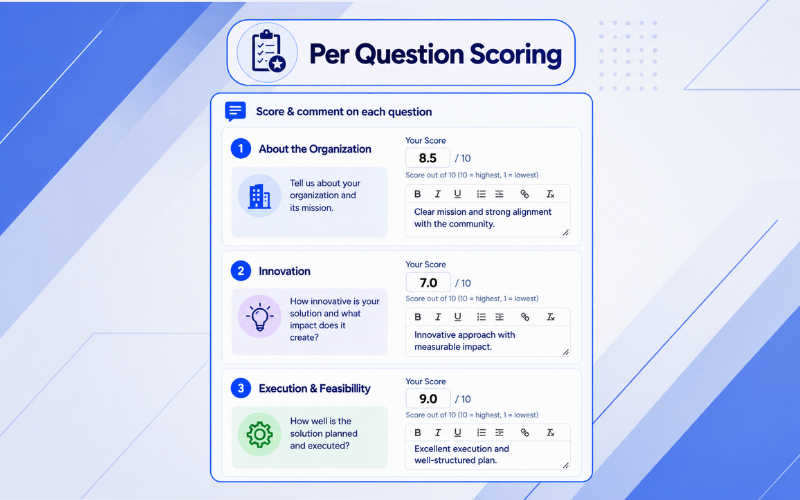
Judges score individual questions on your entry form, and the platform averages those scores.
Question 1       8 / 10
Question 2       7 / 10
Question 3       9 / 10
Question 4       6 / 10
                 ────────
Judge's score    7.5 / 10     (8 + 7 + 9 + 6) ÷ 4
Worth knowing: per-question scoring isn’t a separate category type, it’s an enhancement to simple score, switched on in the entry form builder. Don’t combine it with weighted criteria. If any entry form field is set up for judge grading, your judges will see the per-question interface instead of your category criteria.
Public voting categories
The audience picks the winner. No judges involved, the platform counts verified votes and ranks entries by total. These are your people’s choice and community awards: the categories where the point is participation rather than expert assessment.
Entry A      1,250 votes
Entry B        980 votes
Entry C      1,100 votes
             ────────────
Winner       Entry A
Two safeguards protect the result. A vote only counts once the voter has verified their email address, so the tally can’t be inflated by refreshing a page. And every entry has to be approved by you before the public can see it, so only eligible submissions ever appear on the ballot.
Hybrid categories
Judges and the public both count, in a split you decide. You might give judges 70% and the public 30%, expert assessment carries the result, but audience enthusiasm still shifts it.
Judge score      8.5 / 10   ×  70%   =   5.95
Public score     7.0 / 10   ×  30%   =   2.10
                                         ────────
Final score                              8.05 / 10
Hybrid categories suit programs that want the credibility of a judging panel and the reach of a public campaign. The public vote drives traffic to your landing page; the judges make sure the winner deserves it.
Best practice: most programs weight judges more heavily, 70/30 or 80/20 is typical. It keeps the award meaningful while still giving your audience a genuine say.
With your categories defined, the next step is deciding what you’ll ask entrants to tell you.
Building your entry form
With The Awards Platform you build the entry form yourself.
Your form questions decide the quality of your judging. Whether your judges are giving one overall score, working through weighted criteria, or scoring question by question, they can only assess what you thought to ask for. A vague question produces a vague entry, and a vague entry is impossible to score fairly.
Before you start building, it’s worth writing down what a judge would need to know to score an entry confidently. Those are your questions.
Entry settings
First, a quick decision. The entry settings tab lets you switch on a public landing page, hosted on the platform, where entrants can read about your awards, browse the categories and submit their entry through a dedicated URL. It’s on by default, and the web address is generated from your program name, you can change it whenever you like. We cover designing that page in the next section.
Starting your form
Give the form a name, then choose how to begin:
Start from scratch
A free-form allows you to build question by question. Best when you know exactly what you want to ask.
Load a template
A ready-made form you can then edit. Much faster, and a good way to see what a well-structured entry form looks like before you change it.
Either way you get a drag-and-drop builder: add fields, remove them, reorder them, and change how each one behaves.
The fields you get automatically
Some fields are added for you, because the awards process can’t run without them:
| Field | Why it’s there |
|---|---|
| Award category | Lets entrants choose which award they’re entering. The platform routes the submission into that category automatically for approval, judging and reporting. |
| Entry title | The name every entry travels under. Judges, reports, exports, rankings, shortlists and your winner announcements all identify entries by this, so it earns its place at the top of the form. |
| Company or organisation name | Context for who’s behind the entry, shown wherever organisation details are needed. |
| Full name and email address | How you contact the entrant. Always visible to you, automatically hidden from judges and public voters. |
Who sees what
Different audiences see different things. You see everything submitted, always. For every other field, you decide whether judges and public voters can see it too. Here’s a typical setup:
| Field | You | Judges |
|---|---|---|
| Full name | ✓ | ✗ |
| Email address | ✓ | ✗ |
| Entry title | ✓ | ✓ |
| Company name | ✓ | ✓ |
| Supporting evidence | ✓ | ✓ |
The point isn’t secrecy, it’s focus. Your judges should be reading the substance of an entry, not the contact details of the person who submitted it. Hiding names also removes an obvious route to unconscious bias.
Field types
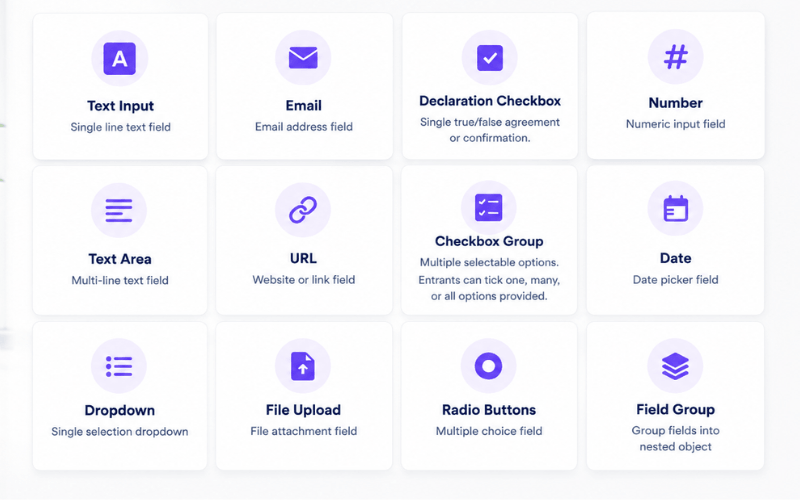
Thirteen field types, covering everything from a one-line answer to a five-image gallery.
See all thirteen field types
| Field type | What it collects | Use it for |
|---|---|---|
| Text input | A short line of text | Entry title, company name, job title |
| Text area | A longer written answer | Tell us about your project, key achievements, why should you win |
| Dropdown | One choice from a list you define | Country, membership level, business size |
| An email address, validated automatically | Contact email | |
| URL | A web link | Website, LinkedIn profile, shared folder of evidence |
| File upload | A supporting document, PDF only | Case studies, presentations, certificates |
| Checkbox | Several choices at once | Anywhere entrants can tick one, some or all of your options |
| Declaration checkbox | Agreement to a single statement | Terms, consent, eligibility confirmations |
| Radio buttons | Exactly one choice from a list | Yes or no questions, business stage |
| Number | Numbers only, with an optional minimum and maximum | Revenue, employee count, years trading |
| Date | A date | Project start date, launch date |
| Field group | Several related fields bundled into one section | Team members, previous roles, project milestones |
| Image gallery | Up to five images | Product screenshots, event photos, before and after shots |
Settings on every field
Click any field and a properties panel opens. Some settings appear everywhere, others only on the field types they apply to.
See all field settings
| Setting | What it does | Notes |
|---|---|---|
| Label | The question your entrants read | Keep it clear and specific. Include a word count where it helps, for example “Describe your innovation (maximum 300 words).” |
| Field name | The internal identifier | Generated for you, you rarely need to touch it |
| Required field | Makes the question compulsory | Entrants can’t submit until it’s answered |
| Placeholder text | Faint example text inside the box | A hint at the kind of answer you’re after |
| Help text | A note underneath the question | Good for spelling out what evidence you expect |
| Visible to judges and public | Controls who else can see the answer | Untick for anything that’s for your eyes only |
| Judges grade this field (1–10 plus comment) | Turns on per-question scoring for this question | Judges score this question individually rather than the entry overall |
| Use this field as entry title | Marks the field as the official entry title | Carries through judging, reports, exports and rankings |
| Use this field as business or brand name | Marks the field as the official company name | Used in reports, judging and on your landing page |
This is where per-question scoring gets switched on. Tick judges grade this field on the questions you want scored individually, and your judges will score question by question instead of giving the entry one overall mark. Remember it replaces your category criteria rather than adding to them, worth re-reading the judge-only categories section if you’re unsure.
Special system fields
A handful of fields do more than collect an answer, they’re wired into the workflow and trigger behaviour elsewhere in the platform.
| Field | What it does |
|---|---|
| Award category | Routes each submission into the right category for approval, judging and reporting. If your program allows entries in several categories, this becomes a multi-category selector. |
| Entry title | The identifier every entry carries through judging, reports, exports, rankings, shortlists and winner announcements. |
| Business or brand name | Identifies the organisation behind the entry, shown wherever that’s relevant. |
| Nominator name | For nominated awards, where the person submitting isn’t the person being recognised. Hidden from judges and public voters. |
| Nominator email | Used to contact and verify the nominator. Always hidden from judges and public voters. |
| Payment reference | Records a transaction reference where you’re charging entry fees yourself, through Stripe or bank transfer. Lets you check payment before approving an entry. Always hidden from judges and public voters. |
Build the form around what your judges need to decide, and you’ll get better entries, more consistent scoring, and far fewer arguments at the end.
Landing page builder

Your awards need a public home, somewhere entrants read about the categories, judges get introduced, and submissions actually happen. You build it here, in the platform. No separate website, no developer. Here are some sample landing pages built with the Awards Platform. Casino Awards Program, Travel Agent Awards Program.
Most of it is already written. Your program name, category names and descriptions, judge profiles, timeline dates, all of it flows through from the setup you’ve already done. You’re not starting with a blank page. You’re choosing how the page you already have should look.
The four stages
1. Make it yours
Logo, colours, typography, headline. The parts that make the page look like your organisation rather than like software.
2. Arrange it
What appears, in what order, and how it’s laid out. Sponsors and FAQs live here too.
3. Fine-tune it
Optional detail work, card styling, judge avatars, timeline effects, and custom CSS if you want it.
4. Publish and share it
Legal pages, analytics, social sharing, and revealing your finalists and winners when the time comes.
Jump to any part:
| Stage | Sections |
|---|---|
| Make it yours | Theme and branding · Hero section · Countdown timer |
| Arrange it | Layout options · Section order and visibility · Sponsors · FAQs |
| Fine-tune it | Judge avatars · Timeline card effects · Advanced styling · Custom CSS |
| Publish and share it | Shortlist and winners · Privacy and terms · Footer · Analytics and SEO · Export |
Stage one: make it yours
Theme and branding
Start here. These settings apply everywhere else, so getting them right first saves you adjusting individual elements later. You’ll set your language, upload your logo, pick your typography, and choose a colour palette, either a ready-made preset or your own brand colours. There’s a dark theme too.
All theme and branding settings
| Setting | What it does | Advice |
|---|---|---|
| Landing page language | Sets the language of built-in text: navigation, buttons, section headings, verification pages and system emails | Choose this before you start building. Currently English and Czech. Write your own content in the same language. |
| Header logo | Your logo in the navigation bar | PNG or JPG, transparent background, no larger than 400 × 200 px |
| Show text next to logo | Displays your program name beside the logo | Leave on unless your logo already spells out the program name |
| Header text | What that text says | Leave blank to use your program name automatically |
| Colour theme preset | A ready-made palette, or custom | Presets get you a professional look in seconds. Choose custom when you have brand colours to match. |
| Primary colour | Buttons and key actions | Your strongest brand colour. Check it has enough contrast to be readable. |
| Secondary colour | Backgrounds and supporting elements | Something that sits comfortably alongside your primary |
| Accent colour | Links, hover states, small highlights | Use sparingly, it works by being rare |
| Font family | Typography across the whole page | Readability first. A clean font beats a characterful one on a page people need to read. |
| Dark theme | Switches to a dark colour scheme | Check your images and colours afterwards, logos with white backgrounds tend to look wrong on dark pages |
Hero section
The first thing anyone sees. It has one job: tell a visitor within a few seconds what these awards are, who they’re for, and how to enter. Keep the headline short and the subtitle specific. “Recognising excellence” tells nobody anything; “Celebrating the best independent food producers in Ireland” tells them whether to keep reading.
All hero settings
| Setting | What it does | Advice |
|---|---|---|
| Headline | The main title in the banner | Under 8–10 words. Short and memorable beats clever. |
| Subtitle | Supporting text underneath | Who the awards are for, what they celebrate, and why someone should enter |
| Content alignment | Positions the text left, centre or right | Centred works best for most awards pages |
| Background style | Gradient, background image, or cinematic hero | A strong image if you have one, a subtle gradient if you don’t |
| Background image | The image behind your headline | 1920 × 1080 px, and check the focal point still works when it’s cropped on a phone |
| Image overlay | A colour wash that makes text readable over the image | 30–50% usually gives good contrast without hiding the photo |
Countdown timer
A live clock ticking down to your deadline, shown in the hero. It’s the single easiest way to convert “I’ll enter later” into “I’ll enter now”, deadlines drive entries, and a visible countdown makes the deadline feel real. It picks up your theme colours automatically.
All countdown settings
| Setting | What it does | Advice |
|---|---|---|
| Show countdown timer | Turns the countdown on or off | Only switch it on when there’s a genuine deadline worth counting to |
| Target date and time | When the countdown expires | Point it at whatever you most want people to act on, usually the entry deadline |
| Countdown label | The text above the clock | Be specific: “Entries close in”, “Public voting ends in”, “Time until the ceremony”. Leave blank for the default. |
| Countdown styling | Takes its colours from your theme | Check the numbers are still legible against your chosen background |
Worth doing: move the countdown target as your program progresses. Point it at the entry deadline while entries are open, then at the voting deadline, then at the announcement. One setting, three different moments of urgency.
Stage two: arrange it
Layout options
How your categories, judges and sponsors are presented. Four choices, and the right one depends mostly on how much content you have.
| Layout | Best when |
|---|---|
| Grid | You have a handful of items and want them all visible at once |
| Accordion | Your descriptions or biographies run long, visitors open what interests them |
| Carousel | You have a lot to show and want the page to stay compact |
| Carousel on mobile only | You want a full grid on desktop but easier swiping on phones |
Categories, judges and sponsors are set independently, so you can mix them, a grid of six categories above a carousel of twenty sponsor logos, for instance.
Section order and visibility
Drag sections into whatever order suits your visitors, and hide any section without deleting what’s in it. This second part matters more than it sounds.
This is how you run a landing page across a whole awards lifecycle without ever rebuilding it. Keep your shortlist and winners hidden while entries are open. When the shortlist is ready, make that section visible. When winners are announced, reveal them too. Same page, three different moments, and nothing to redesign.
A typical order: hero → categories → entry form → judges → timeline → results → FAQs.
What each section does, and when to show it
| Section | When to show it |
|---|---|
| Hero | Always visible, can’t be hidden |
| Categories | Throughout, so visitors can see what they could enter |
| Entry form | While submissions are open. Hide it once entries close. |
| Judges | Before entries open, ideally, a strong panel is a reason to enter |
| Sponsors | Once sponsors are confirmed and have approved their listing |
| Awards timeline | Throughout, so everyone can see where things stand |
| Shortlisted entries | Only after your shortlist is officially announced |
| Winner announcement | Only after winners are officially announced |
| FAQs | Throughout, worth having for almost every program |
| Privacy and terms | Always visible, can’t be hidden |
Sponsors
Each sponsor gets a name, logo, website link and an optional short description. The logo links straight to their site, which is a tangible thing to offer when you’re selling sponsorship packages.
All sponsor settings
| Setting | What it does | Advice |
|---|---|---|
| Section title | The heading above your sponsors | “Our sponsors”, “Our sponsors and partners”, or “Proudly supported by” |
| Sponsor name | The organisation’s name | Use their official trading name, check it against their own website |
| Sponsor logo | The logo shown on your page | PNG with a transparent background where possible. Keep every logo roughly the same visual size, or the row looks untidy. |
| Sponsor website | Links the logo to their site | Always fill this in, it’s part of what they’re paying for |
| Sponsor description | A short line beneath the name | Under 200 characters. Who they are, or why they support the awards. |
| Add and remove sponsor | Manages your sponsor list | Order them by tier if you have sponsorship levels |
Frequently asked questions
Every question you answer here is an email you don’t have to write. Questions appear as an expandable list, and you can add to them at any point during the program.
Start with 5–10 questions covering eligibility, entry fees, deadlines, how judging works, what supporting evidence you expect, and when winners are announced. Then add to the list every time someone emails you something you haven’t covered, by your second program, the FAQ writes itself.
All FAQ settings
| Setting | What it does | Advice |
|---|---|---|
| Section title | The heading above your questions | “Frequently asked questions”, “Need help?”, or just “FAQs” |
| Question | What visitors see in the list | Write it the way someone would actually ask: “Who can enter?” not “Eligibility criteria” |
| Answer | What appears when they open it | Short and direct. Link out if there’s more detail elsewhere. |
| Add and remove FAQ | Manages your question list | Only the genuinely common questions, a list of thirty helps nobody |
Stage three: fine-tune it
Everything in this stage is optional. If you’ve chosen good theme colours, your page already looks fine, these settings are for organisations with brand guidelines to match.
Judge avatar styling
Controls the shape, border and glow of judge photographs. Purely cosmetic; it has no effect on judging. Circular avatars with a subtle border in your primary colour suit most programs.
Timeline card effects
Your timeline updates itself as the program progresses, marking each milestone as upcoming, active or completed. These settings control how those three states look. The dates come from the timeline you set during program setup, you don’t enter them again.
All timeline styling settings
| Setting | What it does | Advice |
|---|---|---|
| Card style | The visual treatment on timeline cards | Soft glow suits most programs |
| Glow intensity | How strong that effect is | Medium, visible without shouting |
| Active step colour | Highlights the stage you’re currently in | Your primary colour, so the current phase is obvious at a glance |
| Completed step colour | Marks stages already finished | Your accent colour, or anything clearly distinct from the active state |
| Live preview | Shows your changes as you make them | Check that upcoming, active and completed are all clearly different from one another |
Advanced styling
Where theme and branding sets the overall look, this section lets you adjust individual elements: the navigation bar, cards, buttons and the entry form. Every change shows instantly in the live preview.
All advanced styling settings
Header and navigation
| Setting | Advice |
|---|---|
| Header background | Pick something that contrasts clearly with your navigation text |
| Header text and menu button | Check readability carefully in dark theme |
Cards, applies to categories, judges, sponsors, FAQs, timeline, winners and shortlisted entries.
| Setting | Advice |
|---|---|
| Card background | A subtle neutral keeps text readable |
| Card hover background | A slightly lighter or darker version of the card colour |
| Card border | Keep it faint, strong borders make a page look busy |
| Card title colour | Strong contrast against the card background |
| Card body text colour | Readability over branding, always |
| Secondary text colour | For dates and metadata. Muted, but still legible. |
| Card hover text colour | Leave blank unless you need extra contrast |
Buttons
| Setting | Advice |
|---|---|
| Button background | Your primary colour, this is your “enter now” button |
| Button text | Strong contrast, no exceptions |
| Button hover | A shade lighter or darker than the button itself |
Entry form
| Setting | Advice |
|---|---|
| Form background | Light and uncluttered, people are about to do work here |
| Form border | Subtle, matching your page theme |
| Label colour | Highly readable against the form background |
| Input background | Clear contrast so entrants can see where to type |
| Input border | A neutral that defines each field |
| Input text | Dark on light, light on dark |
Best practice: set your theme and branding first, then only reach for advanced styling to fix something specific. A well-chosen primary, secondary and accent colour usually gets you a good-looking page with nothing else touched.
Custom CSS
For anyone comfortable with CSS, there’s an editor for styling beyond what the builder offers, spacing, typography, responsive tweaks, animations. Media queries are supported, so you can adjust desktop, tablet and mobile separately. Only CSS works here; JavaScript isn’t permitted, for security and stability. Common uses: adjusting font sizes, changing spacing between sections, fixing a layout on one screen size, or applying brand styling the standard settings don’t reach.
Best practice: configure everything you can through the builder first, and use custom CSS only for what’s genuinely left over. Less custom CSS means fewer surprises when the platform updates.
Stage four: publish and share it
Shortlisted entries and winners
Two sections that stay hidden until you’re ready, then reveal your results without touching the design. Shortlisted entries shows your finalists, grouped by category. An entry appears here once three things have happened:
- The entrant submits their entry
- They verify their email address
- You approve the submission
Winners shows the final results once judging is complete and you’ve announced them.
Shortlist and winner display settings
Winners section
| Setting | Advice |
|---|---|
| Section title | “Winners”, “Award winners”, or “Congratulations to our winners” |
| Section subtitle | Congratulate the winners and thank everyone who entered |
| Layout style | Grid suits most programs, clean and easy to browse |
| Show scores publicly | Only if you’ve committed to transparent scoring. Once published, you’ll be asked to justify every number. |
Shortlisted entries section
| Setting | Advice |
|---|---|
| Section title | “Shortlisted entries”, “Finalists”, or “Meet our finalists” |
| Section subtitle | Congratulate the finalists and build anticipation for the announcement |
| Display per entry | Entry title works best, meaningful to readers, and it keeps judging blind where you need it to be |
| Layout style | Category cards, so visitors can see who’s competing against whom |
| Show “coming soon” message | Useful if you want visitors to know a shortlist is on its way |
| Fallback message | “Shortlist coming soon” or “Finalists will be announced shortly” |
Privacy policy and terms and conditions
Both are included by default, so you can launch without waiting on legal wording. The standard terms cover eligibility, how to submit, how judging works, privacy, and intellectual property, including that entrants keep ownership of their work while granting you permission to use it in promoting the awards. You have three options:
Use the defaults
Leave both editors blank. Sensible standard wording, good enough for many programs.
Write your own
Enter your text in the editor and it replaces the default entirely.
Link to yours
Point to the policies already on your own website, so visitors always get the current version.
Important: your own wording replaces the defaults rather than adding to them. The platform doesn’t merge the two, so if you write your own, make sure it covers everything you need it to.
Footer
Copyright text and social links, Facebook, X, LinkedIn, Instagram. Leave any of them blank if they don’t apply. For copyright, your organisation name and the current year: © 2026 Your Organisation. All rights reserved.
Analytics and SEO
How you measure visitors, and how your page looks when it’s shared.
All analytics and SEO settings
| Setting | What it does | Advice |
|---|---|---|
| Google Analytics 4 measurement ID | Connects your page to Google Analytics | Paste your GA4 ID (it looks like G-XXXXXXXXXX) to track visitors, page views and engagement |
| Social share title | The headline shown when someone shares your link | Leave blank to use your hero title. Otherwise write something short that invites a click. |
| Social share description | The summary underneath it | Leave blank to use your hero subtitle. Keep it brief. |
| Social share image | The preview image on Facebook, LinkedIn and X | Exactly 1200 × 630 px. Anything else gets cropped unpredictably. |
| Hide from search engines | Asks search engines not to index your page | Switch it on while you’re building or testing. Remember to switch it off before launch. |
Don’t forget to switch this off. “Hide from search engines” is the setting most likely to be left on by accident, and it quietly keeps your awards out of Google for the entire program. Check it the day you launch.
Export your landing page
You can download your landing page as a standalone HTML file and host it on your own domain, so the awards live at yourdomain.com/awards rather than on the platform. The clever part: it isn’t a frozen copy. The exported page keeps talking to the platform through a secure connection, so your categories, judges, timeline and FAQs all stay current, and entries submitted through it flow straight back into your account.
Which means you only export once. Update your content inside the platform and your hosted page updates itself. No re-exporting, no re-uploading.
What the export includes
| Feature | What it means |
|---|---|
| Complete standalone file | All structure and styling in one file, no extra CSS or JavaScript to upload |
| Live data | Categories, judges, timelines and forms stay synchronised automatically |
| Responsive design | Works across desktop, tablet and mobile. Worth testing once it’s on your server. |
| Entry form works | Submissions still process through the platform exactly as normal |
With your landing page live, the next step is bringing your judging panel together.
Building your judging panel
Your judges are the credibility of your awards. This section covers getting them on board, giving them the right categories, and handling it properly when someone can’t judge something impartially.
Inviting judges
One at a time
Email address, first name, last name, and which categories they’ll judge. You can add a personal message to the invitation, worth doing when you’re asking a favour of someone senior.
All at once
Paste CSV data and the platform validates it, shows you a preview, and emails every judge on the list. Faster once you’re past about five judges.
For bulk import, one line per judge:
Sarah,Johnson,sarah@example.com,"Best Customer Service;Innovation Award"
Mark,Reynolds,mark@example.com,Best Place to Work
Priya,Shah,priya@example.com,All
Two things to note. Judging several categories? List them in quotes, separated by semicolons. Judging everything? Just write All. And none of this is permanent, you can change any judge’s categories later.
What happens next, from your judge’s side
1. They get an email
From alerts@theawardsplatform.com, explaining your program, listing their categories, and carrying a secure invitation link.
2. They accept
A short onboarding, they set a password and their account goes live.
3. They’re in
Their dashboard shows the judging period, their categories, and how many entries are waiting.
Tell your judges to expect the email, and to check their spam folder. An invitation from an unfamiliar address is exactly the sort of thing a corporate mail filter quarantines, and a judge who never saw the invitation looks like a judge who’s ignoring you.
Judge profiles
Judge profiles appear publicly in the judges section of your landing page. A strong, credible panel is one of the better reasons someone decides your awards are worth entering. A profile can hold a photograph, professional title, organisation, biography, areas of expertise, LinkedIn profile and website. There are two ways to fill it in:
The judge does it
They’re prompted during onboarding, and can update it any time from My profile in their dashboard.
You do it
Open a judge card in judge management, click Edit, and complete their details on their behalf.
In practice you’ll do some of both. Judges are busy, and a panel where three profiles are polished and two are blank looks careless, so it’s worth filling in the gaps yourself before you make the section public.
Your judge pool
Everyone you’ve invited sits here, where you can track who’s accepted, search the panel, filter by expertise, edit profiles, and remove judges who drop out.
Assigning judges to categories
Pick a category from the dropdown and you’ll see who’s assigned to it, who else is available, and any replacement judges brought in through a conflict of interest. Add or remove with one click. Judges only ever see the categories assigned to them, they can’t browse other categories or reach anything administrative.
Aim for at least three judges per category. Three scores average out individual bias in a way one or two can’t, and if a judge drops out or declares a conflict, you still have a defensible result while you sort out a replacement.
All judge assignment settings
| Setting | What it does | Advice |
|---|---|---|
| Category selector | Chooses which category you’re managing | Work through one category at a time |
| Assigned judges | Who’s currently judging this category | Three or more where you can manage it |
| Available judges | Who else you could add | Match judges to categories by expertise, not just availability |
| Add judge | Assigns a judge to this category | Check they’ve accepted their invitation first |
| Remove judge | Takes a judge off this category | Fine before judging opens. During judging, only when you have to. |
| Entry-level replacement judges | Shows judges brought in to cover a conflict of interest on a single entry | Check these so every entry ends up with the same number of scores |
Conflicts of interest
Sooner or later a judge will open an entry from a company they consult for, a former colleague, or a client. Every entry has a declare conflict of interest button for exactly this. The judge picks the type, submits it, and you’re notified by email, the declaration then appears in your conflicts and exceptions tab for review. There are two types, and the difference determines what you need to do about it.
| Category recusal | Entry-level removal | |
|---|---|---|
| Use when | The conflict affects every entry in the category, they work closely with several entrants | The conflict is with one specific entry |
| What happens | The judge is removed from the whole category and can’t be reassigned to it | That single entry disappears from their list |
| Existing scores | All their scores in that category are excluded from reports and analytics | Their score for that entry is excluded |
| Replacement judge | Optional | Strongly recommended |
Why replacement is optional in one case and important in the other. The principle behind fair judging is that every entry in a category is assessed under the same conditions. A category recusal takes one judge away from all the entries equally, the playing field stays level, so you don’t have to replace them. An entry-level removal takes a judge away from one entry, so that entry ends up with fewer scores than its competitors. Assign a replacement and the balance is restored.
Every declaration is recorded in the platform’s audit trail, who declared what, when, and which replacement was assigned. Worth knowing if a losing entrant ever questions how a category was judged.
What judging looks like for your judges
Judges get their own workspace, separate from yours. They see the categories you assigned them and nothing else, no other categories, no other judges’ scores, no administrative controls.
| Step | What the judge does | What they see |
|---|---|---|
| 1 | Signs in | Their dashboard, showing the programs they’re judging |
| 2 | Reviews their categories | Only the categories assigned to them |
| 3 | Opens a category | The entries waiting for their review |
| 4 | Reads a submission | The entry and its supporting evidence, minus anything you hid from judges |
| 5 | Scores it, and comments if they want | The scoring method you configured for that category |
| 6 | Repeats until finished | Their progress, and what’s left to do |
What they see at step five depends on the scoring model you chose for that category, a single 1–10 score, individual criteria, or question-by-question scoring. Those three are explained in full back in award categories.
Managing entries
Every submission arrives here, and nothing reaches your judges until you’ve approved it. That gate is the point: it’s how you keep ineligible, incomplete or duplicate entries out of the judging process.
| Step | What happens | Result |
|---|---|---|
| 1. Entry arrives | Someone submits through your entry form | It appears in your entries dashboard as submitted |
| 2. Entrant verifies | They click the link in their verification email | Their submission is confirmed as genuine |
| 3. You review | You read the entry and check the supporting evidence | You know whether it belongs in your awards |
| 4. You approve or reject | Your decision | Approved entries move forward, rejected ones stop here |
| 5. You transfer it, if needed | You move the entry to a category that fits better | The entrant is told about the change |
| 6. Judging begins | Approved entries reach your judges or your public voters | Evaluation starts |
Knowing an entry has arrived
You’ll get an email, a notification in the platform, and a pending actions card on your dashboard showing what’s waiting. If you’ve connected Discord or Slack, alerts go there too.
Reviewing a submission
Entries are grouped by category. You can search and filter by status, expand or collapse each category, open any entry in full, and export the lot. Opening an entry shows you everything: the submission itself, uploaded files and links, the entrant’s contact details, when it was submitted, whether they’ve verified their email, and any fields you marked as organiser-only.
Approving: how verification affects it
This is the one part of the entries process that surprises people, so it’s worth being precise.
| You approve an entry, and the entrant… | What happens |
|---|---|
| has verified their email | The entry becomes approved. The entrant gets a confirmation email, and the entry is ready for judging or public display. |
| not verified yet | Nothing yet because the entry is locked. Come back to it once they’ve verified. |
Rejected entries are marked rejected and take no further part in the program.
Verification has a deadline, and unverified entries expire. Entrants have a limited number of days to click the link before their submission stops counting, so a locked entry isn’t something to leave sitting. If you’re seeing several, a nudge to those entrants usually clears it, and “check your spam folder” is the answer most of the time.
Moving entries between categories
Entrants pick the wrong category. It happens in every awards program, and most platforms make you delete the entry and ask them to submit again. Here you just move it, before approval, after approval, during judging, even after judges have scored it.
| When you move it | What the platform does |
|---|---|
| Before judging | The entry simply appears in its new category, ready for the judges assigned there |
| After scores exist | Scores from the old category are excluded from the new category’s reports and calculations. The entry is judged only by its new category’s judges. |
Entrants are notified automatically when their entry is reassigned, so nobody discovers the change at the announcement.
Why this matters more than it sounds. Judging under the wrong category is the fastest way to produce a result you can’t defend. Being able to fix a misfiled entry mid-program, without losing the entry or restarting the category, is the difference between a small admin task and an awkward conversation
Reports and analytics
Judging is done. This is where you find out what it added up to, and where you get the evidence to back it up if anyone asks. Everything lives under three tabs:
Judging results
Your scores, rankings and winners, category by category. Plus the reports you’ll download for announcements.
Judge feedback
Every score and comment your judges gave, exportable in full. Your audit trail.
Entrant feedback
Send personalised results to the entrants who didn’t win, without writing a single email.
The results dashboard
Five numbers at the top tell you where the program stands: total categories, how many have finished judging, judge votes cast, public votes cast, and your average score across the whole program. Underneath, a table breaks it down category by category, entries received, judges assigned, judging activity, public voting activity, average scores, whether judging is complete, and who’s currently leading. For hybrid categories, the judge and public contributions are shown separately alongside the combined result, so you can see exactly how the weighting shaped the outcome.
Looking inside a category
Click details beside any category and you get the full picture: every submission ranked, average judge scores, the weighted calculation behind each one, individual judge totals, the category average, and the final winner.
Use this before you announce anything. It’s where you spot the two entries separated by 0.1 of a point, or the one judge scoring consistently lower than the rest. Better to notice a close margin now than when a runner-up asks about it.
Reports you can download
Three ready-made PDFs, each built for a different moment:
Winners only
Just the winner in each category. Clean enough to send straight to press, put on your site, or post on social.
Top three
The top three in each category with final scores. For recognising runners-up and building an announcement with some suspense in it.
All rankings
Every entry, every placement, every score. Your complete record, and what you’d reach for if a result were ever questioned.
All three carry your program statistics on the front. Data is also available as CSV for spreadsheets and JSON if you’re feeding results into something else.
The judge feedback export
This is your evidence file. Not a summary of what your judges decided, a complete record of every score and every comment, at the finest level the platform holds.
One row per criterion, per judge, per entry. If three judges score an entry against four criteria, that entry produces twelve rows. So a small program generates a big file, and that’s the point. Nothing is aggregated away.
Here’s how a single entry looks, judged by one judge across three questions:
| Entry title | Judge | Criterion / question | Item score | Judge overall |
|---|---|---|---|---|
| Curating Meaningful Solo Adventures | H. Banks | Describe your approach to planning… | 8.5 | 7.23 |
| Curating Meaningful Solo Adventures | H. Banks | How do you ensure safety and wellbeing… | 7.6 | 7.23 |
| Curating Meaningful Solo Adventures | H. Banks | Share a success story… | 6.9 | 7.23 |
Item score is what the judge gave that individual question. Judge overall is their score for the whole entry, repeated on every row. Average score is the entry’s final figure across all judges, which is why the same numbers repeat down the file.
Every column in the judge feedback export
| Column | What it holds |
|---|---|
| Category | The award category the entry was judged in |
| Entry title | The entry, as it appears throughout the platform |
| Company | The business or brand behind the entry |
| Submitter and submitter email | Who entered, and how to reach them |
| Average score | The entry’s final score across every judge |
| Judge count | How many judges scored this entry, worth scanning, since it should be the same for every entry in a category |
| Judge name and judge email | Which judge produced this row |
| Judging type | Simple score, weighted criteria, or per question |
| Criterion / question | What was being scored on this row |
| Weight (%) | What that criterion was worth. Only filled in for weighted criteria, blank on per-question rows, which is expected rather than missing. |
| Item score | The score for this criterion or question |
| Judge overall score | That judge’s total for the whole entry |
| Comment | Anything the judge wrote |
| Judged date | When the score was submitted |
Handle this file carefully. It contains entrant and judge names and email addresses in plain text, alongside individual judges’ scores and private comments. Keep it somewhere secure, share it only with people who need it, and never send it to an entrant, the entrant feedback tool below exists precisely so you don’t have to.
For a simpler view of your entries, one row each, with status, dates, scores and rankings, use the CSV export in the entries section instead.
Sending feedback to entrants
Here’s a situation every awards organiser recognises. Judging is finished, you’ve announced the winners, and now the inbox fills up: how did we do? Answering forty of those individually is a day’s work, and the answers are all sitting in your reports. The entrant feedback tool sends them for you, one personalised email per entrant, built from their actual results.
Winners are never emailed. The tool excludes them automatically, so there’s no risk of sending a consolation message to someone who won. Before you send, it tells you exactly how many people will receive it.
What you’re choosing
Two decisions. First, scope, all categories at once, or one category at a time. Then what goes in the email:
| Option | What the entrant sees | Worth thinking about |
|---|---|---|
| Entrant score | Their own final score | The one most people want. Safe to include in almost every program. |
| Ranking position | Where they placed in their category | Encouraging at third, less so at eleventh. Consider sending by category so you can vary it. |
| Winner name | Who won their category | Public information anyway, once you’ve announced |
| Winner score | The winning score | Useful context, “we lost by 0.3” reads very differently from “we lost” |
| Category average score | The average across their category | Tells them whether they were above or below the field. Genuinely helpful for anyone planning to enter again. |
| Judge feedback and comments | What your judges actually wrote | The most valuable and the most exposed. Read the comments first, see the warning below. |
Read the judge comments before you switch that option on. Judges write for you, not for the entrant, and a note that reads as brisk shorthand internally can land badly in someone’s inbox. Check them first, and if you plan to share comments, tell your judges that in advance. They’ll write more constructively when they know who’s reading.
Before you send
Three buttons, and they’re worth using in order:
Preview
Shows you the email as an entrant will receive it, with real data filled in.
Send test to me
Puts the real email in your own inbox, so you see it the way they will, on a phone, in a mail client, not in a preview pane.
Send entrant feedback
Sends to everyone in scope. Check the recipient count first, it’s shown just above the button.
Sending feedback is what turns a one-off entry into a returning entrant. Someone who scored 7.2 against a winning 8.1, and can see exactly where the gap was, has a reason to enter again next year. Someone who heard nothing has no reason at all.
That’s the full lifecycle
From an empty program to published winners: settings, categories, entry form, landing page, judges, entries, judging, results, feedback. Nine steps on your checklist, one credit, one complete awards program. What the platform is really replacing is the spreadsheet, the shared inbox, the reminder emails you write yourself, and the evening spent adding up scores hoping you haven’t made an error. What you get back is time to spend on the part that actually matters, finding the people worth recognising, and recognising them properly.
Frequently Asked Questions
One payment buys one credit, and one credit runs one complete awards program from setup through to final results. There's nothing extra to buy along the way, no per-entry fees, no charges for additional judges or categories.
The nine-step setup checklist can be completed in an afternoon if you know your categories and dates. The parts that take longest are writing your entry form questions and inviting judges, since both depend on decisions rather than data entry. Most organisers set up over a week or two, then leave entries open for four to eight weeks.
No. Categories can be decided entirely by public vote, entirely by a judging panel, or by a weighted combination of both. Each category is configured independently, so a single program can mix all three approaches.
At least three where you can manage it. Three scores average out individual bias in a way one or two can't, and if a judge withdraws or declares a conflict of interest, you still have a defensible result.
You move the entry to the correct category, before approval, after approval, during judging, or even after judges have already scored it. Scores from the previous category are excluded from the new category's calculations, and the entrant is notified automatically of the change.
Public votes only count once the voter has verified their email address, so a result can't be inflated by refreshing a page. Every entry also has to be approved by the organiser before it appears on the public vote at all.
Yes. Your landing page can be exported as a standalone HTML file and hosted on your own domain. It isn't a frozen copy, the exported page keeps pulling live data from the platform, so your categories, judges, timeline and FAQs stay current, and entries submitted through it flow straight back into your account.
Entrants who didn't win can be sent a personalised feedback email containing their score, their ranking, the category average, the winning score, and judge comments, you choose which of those to include. Winners are excluded automatically.
If an entry is transferred to a different category after judges have already scored it, all previous scores are automatically discarded.
The entry is then treated as a new judging assignment in its new category, even if some or all of the judges are the same.
This is because every category has its own purpose, judging criteria and competing entries. A score given for Customer Service Excellence, for example, should not influence the results in Innovation in Business.
If the same judge is assigned to both categories, they will simply score the entry again, this time within the context of the new category.
This approach ensures every entry is judged fairly, rankings remain accurate, and winners are determined solely on scores that belong to the correct category.
If a judge declares a conflict of interest with a specific entry, they can be recused from judging that entrant without affecting their other assignments.
The organiser can assign a replacement judge, ensuring the entry still receives the required number of independent scores while maintaining the integrity of the judging process.
Yes. If a judge has a conflict of interest with an entire category, the organiser can recuse them from that category.
Any scores they have already submitted for that category are automatically excluded from reports and rankings, and a replacement judge can be assigned to complete the evaluations.
If two or more entries receive the same final score, the platform automatically flags the tie on the organiser dashboard and sends an email notification.
If there are still judges assigned to that category who haven't submitted their scores, the organiser may simply wait until all judging is complete, as the tie could resolve itself naturally.
If the tie remains once judging has closed, the organiser can follow their awards' tie-break process. This may involve asking judges to review the tied entries, discussing the outcome with the Chair of Judges or Awards Committee, or selecting the winning entry directly within the platform.
The Awards Platform alerts you when a tie occurs but leaves the final decision in your hands, ensuring the outcome follows your awards' own rules and governance.